3D View - Building Scenes
Once your scene is open in 3D View, you can place, move, resize, and customize assets to stage your story. This page covers the core tools for manipulating objects in the scene.
Moving and Rotating Click an asset to select it. A transform gizmo will appear, giving you handles to move and rotate the asset along any axis. Drag the gizmo handles to reposition or rotate the asset in the scene.
Resizing works differently depending on the type of asset:
3D Objects - resize using the sliders in the Property Panel on the bottom right of the Editor.
Structures and Images - these can be resized directly in the 3D scene by dragging their handles, giving you more immediate visual feedback as you scale them.
Applying Changes
Different asset types support different kinds of changes — for example, Characters can be posed, Structures can have their texture changed, and Images can be made translucent. There are two main ways to apply changes to an asset:
1. Property Panel
The Property Panel is the most comprehensive tool for editing assets. It contains all available settings and actions for whatever is currently selected, including movement, rotation, and resizing options. It's accessible in both 3D View and Layout View, located at the bottom right of the Editor.
2. Action Menus
There are two contextual menus that give quick access to common actions:
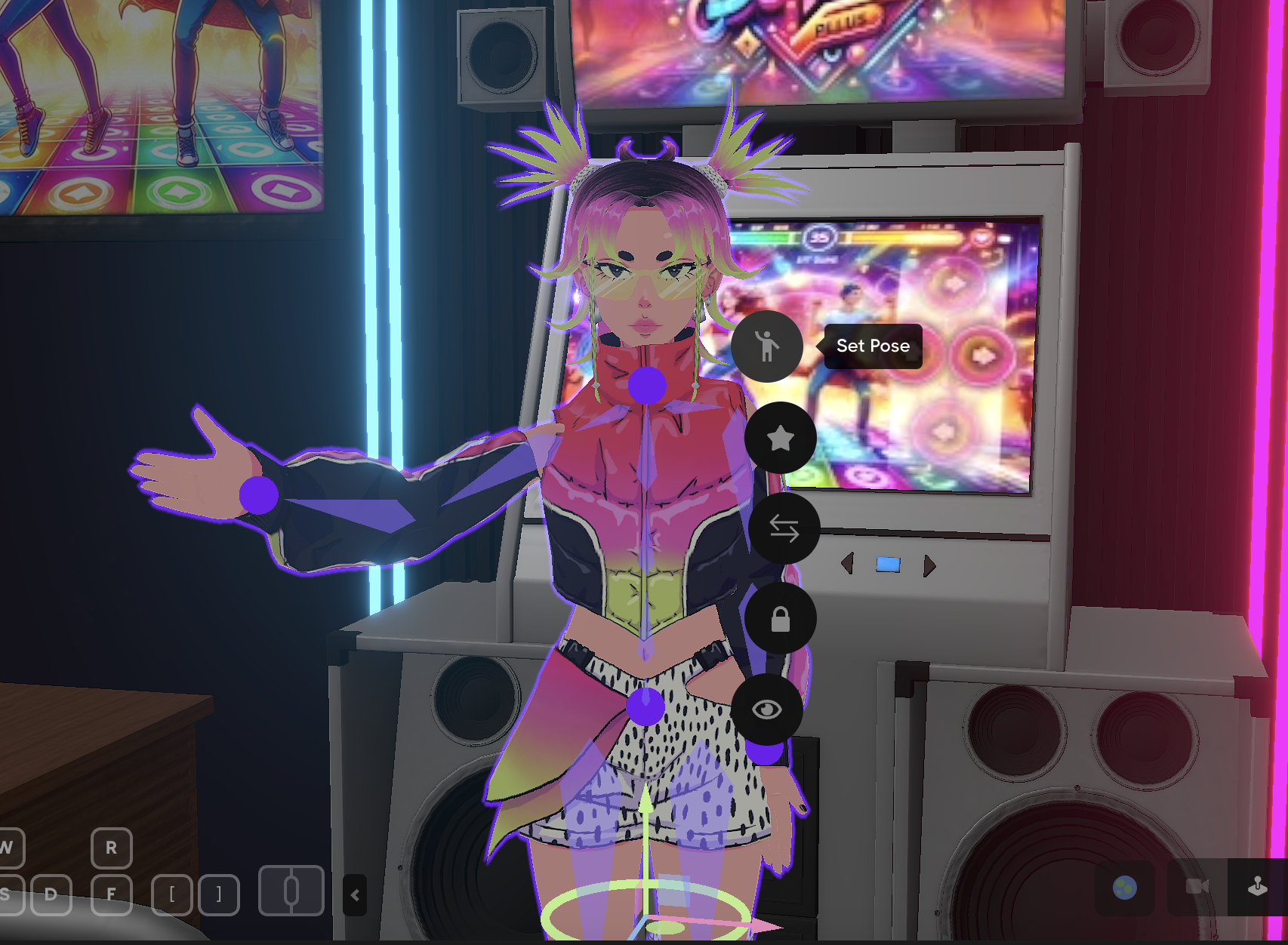
Pop-Up Menu - displays the most frequently used actions for the selected asset. Access it by double-clicking an asset, or by clicking an already-selected asset again.
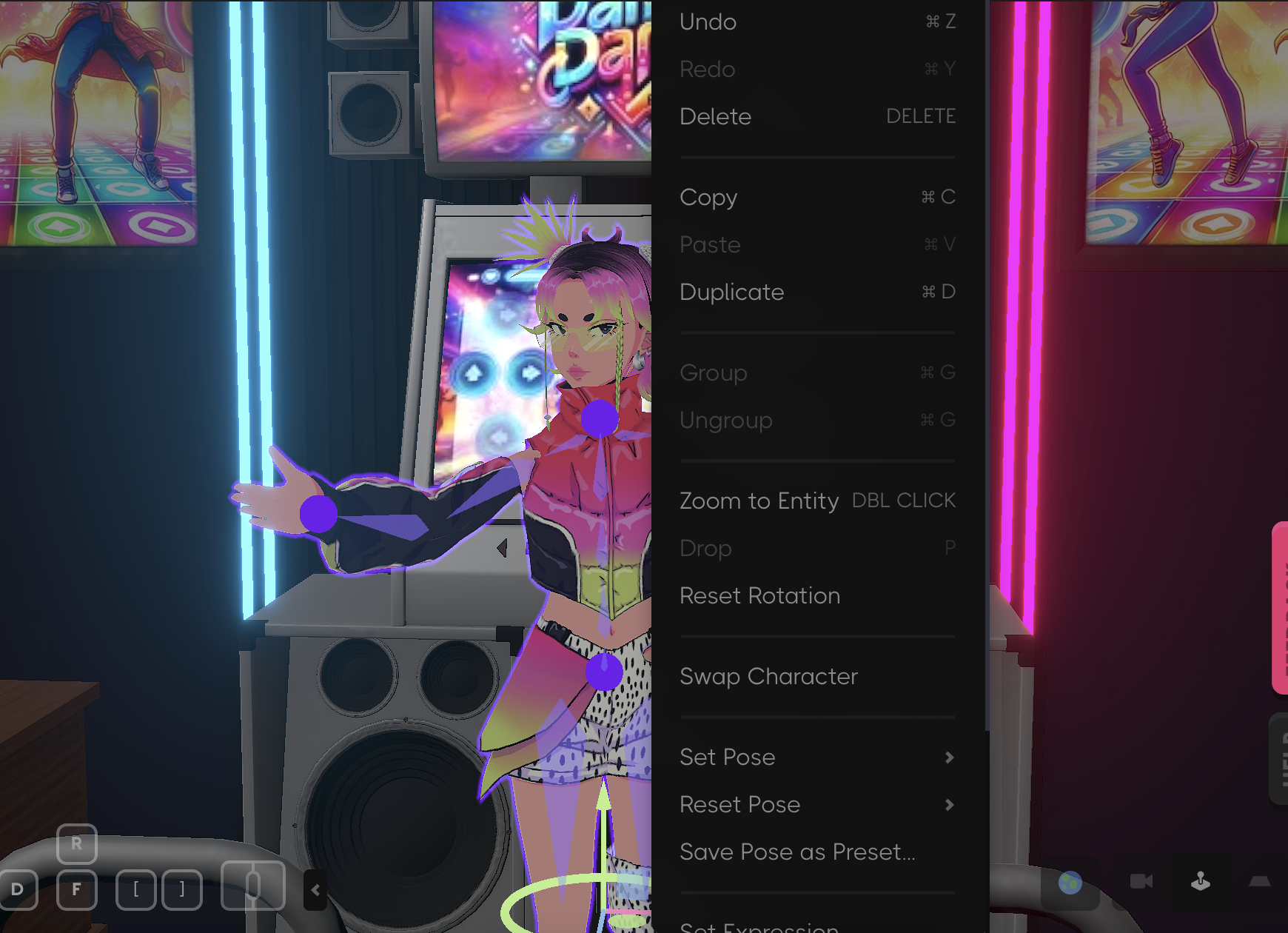
Right-Click Context Menu - contains actions that are global to the Editor, such as Undo, Redo, Duplicate, and Delete.
Tips
Unlock assets before editing. If an asset is locked, you won't be able to interact with it. Double-click a locked asset to select it, then proceed with your edits.
Use the Property Panel for precision. While gizmos are great for quick adjustments, the Property Panel gives you exact numerical control over position, rotation, and scale — useful when you need consistency across multiple panels.
Last Updated: May 4, 2026